When people search for a builder, plumber or sparky near them, Google mostly shows businesses with a complete Google profile and good recent reviews. Your website on its own isn't enough, so these five steps help Google show your business.
You'll need: your phone or computer, and the Google account you use for your business.
We've used the words Google uses on its help pages. The wording may look slightly different on your phone.
Step 1
Check you can manage your Google profile
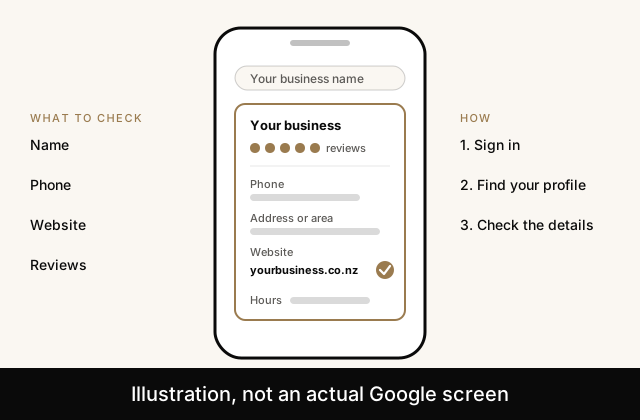
Your free Google profile is what shows on Google Search and Maps, with your phone number, hours, photos and reviews. Google calls it your Business Profile.
Sign in to Google with the account you use for your business.
Go to business.google.com, or search Google for your business name and town. You can also search my business.
If you can manage it, your profile opens with options like Edit profile. You're all set. Go to step 2.
If you see Own this business (on Google Search) or Claim this business (on Google Maps), select it, then Manage now.
Follow Google's steps to verify that it's your business. Google chooses how, for example a phone call or text, an email, or a short video.
If Google says Someone else may manage this Business Profile, select Request Access and fill in the form. The person who manages it gets 3 days to reply.
Illustration, not an actual Google screen.
Step 2
Make sure your website link is right
If your profile still shows an old website, or none at all, people can't click through to your new site.
Open your profile, as in step 1.
Select Edit profile. In the Google Maps app, tap Business, then Edit profile.
Find Website and type your full new address, starting with https://. For example: https://yourbusiness.co.nz
Select Save.
Google checks changes before they show, so it may not update straight away.
Step 3
Give FreshSite access to your profile
This lets us keep your profile up to date for you, like your website link or hours. You stay the owner, and you can take us off at any time. Your Google profile itself is free from Google.
There's no need for anyone to visit you. There are two ways to do it. Use whichever suits you.
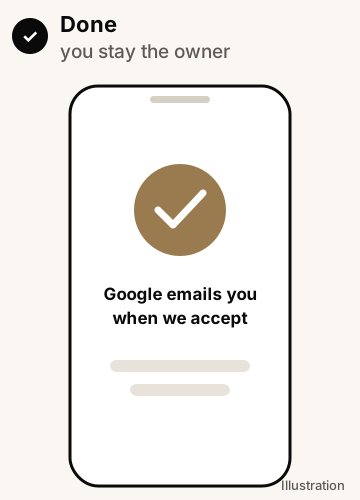
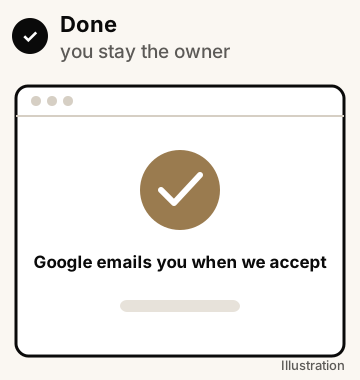
The quick way: approve our request. If we've told you we've sent a request through Google, look for a message from Google about FreshSite managing your profile. It may come by email to the Google account that owns your profile, or show when you open your profile. Check it names FreshSite, then approve it. That's it.
Can't find it after a day or two? Use the steps below instead. They take about two minutes.
Or add us yourself
Our email
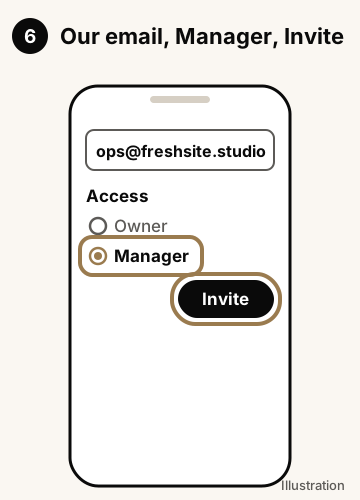
ops@freshsite.studio
On a phone (Google Maps app)
Open the Google Maps app. Make sure you're signed in with the Google account you use for your business.
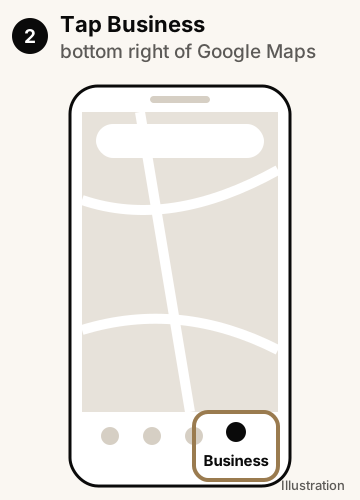
At the bottom right, tap Business.
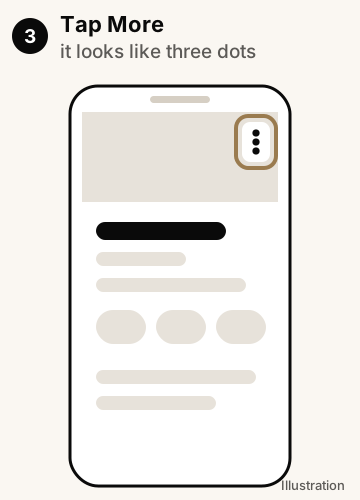
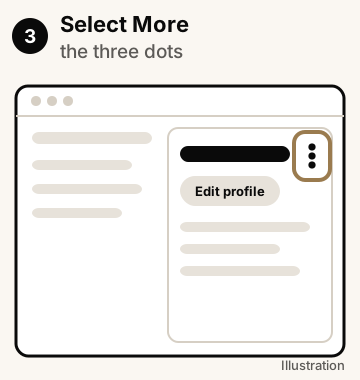
Tap More. It looks like three dots ⋮
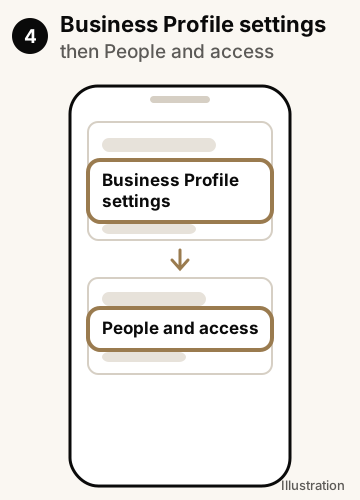
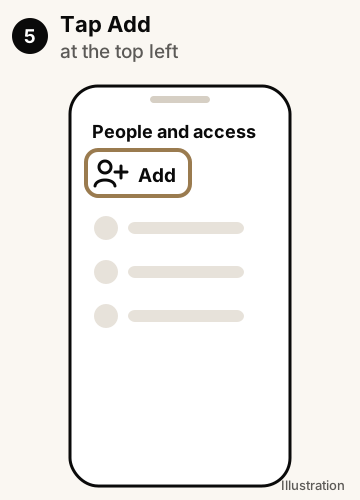
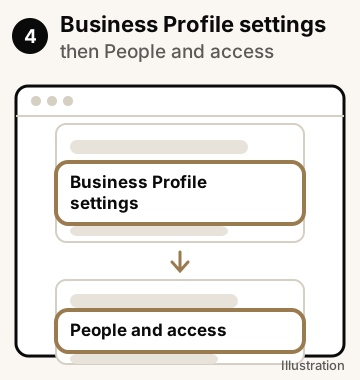
Tap Business Profile settings, then People and access.
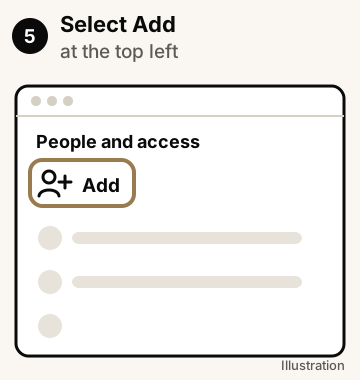
At the top left, tap Add.
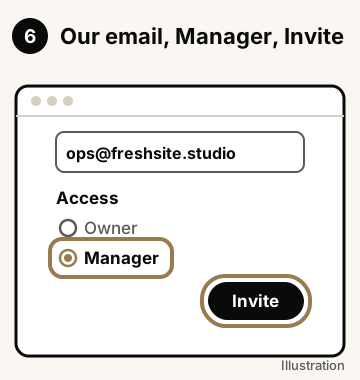
Enter our email: ops@freshsite.studio. Under Access, choose Manager. Then tap Invite.
Swipe to see each step →
Illustrations, not actual Google screens. The words match Google's help pages, but your screen may look a little different.
On a computer
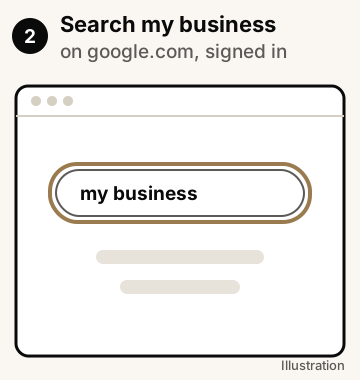
Go to google.com. Make sure you're signed in with the Google account you use for your business.
Search my business, or your business name and town. Your profile shows with options like Edit profile.
Select More. It looks like three dots ⋮
Select Business Profile settings, then People and access.
At the top left, select Add.
Enter our email: ops@freshsite.studio. Under Access, choose Manager. Then select Invite.
Swipe to see each step →
Illustrations, not actual Google screens. The words match Google's help pages, but your screen may look a little different.
Can't see Business, or your profile? You may be signed in to a different Google account. Switch to the one you use for your business, then try again. If your profile isn't yours yet, do step 1 first.
Can't see Add? Only an owner can add people. Ask whoever set up your profile to do it, or to make you an owner.
Want to take us off later? Go back to People and access and remove FreshSite. If you stop using FreshSite, just tell us and we'll take ourselves off your profile.
Google doesn't let a Manager add or remove people, or remove your profile. So we can't remove you as the owner or delete your profile. You can remove us any time from People and access.
Stuck? Just reply to our email and we'll help you through it.
Step 4
Ask happy customers for a Google review
Recent reviews are one of the main things people look at before they call. The easiest way is to text your review link soon after a job.
Open your profile, as in step 1.
Select Read reviews, then Get more reviews.
Select Copy to copy your review link. Save it in your phone notes so it's handy.
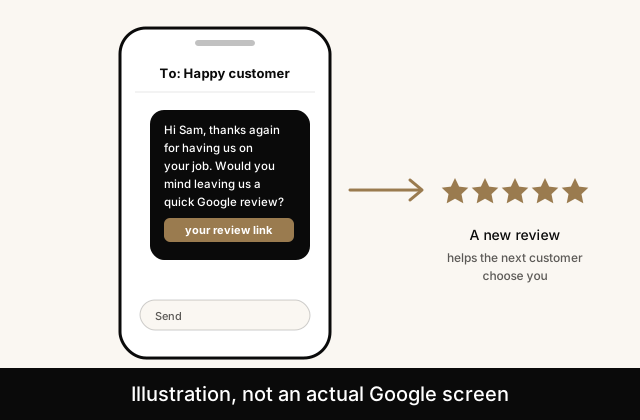
Text or email it to a happy customer. You can copy our example message below and change it to suit.
Example text message
Hi [name], thanks again for having us on your job. If you were happy with the work, would you mind leaving us a quick Google review? It really helps a small business like ours. [your review link] Cheers, [your name]
Only ask real customers, and don't offer discounts or freebies for a review. Google doesn't allow it.
Tip: reply to your reviews, good or bad. Select Read reviews, then Reply next to the review. A short thank you by name is plenty.
Illustration, not an actual Google screen.
Step 5
Fix old listings on other websites
Many websites list businesses, often without asking. If they show an old phone number or address, customers get confused and so does Google.
Search Google for your business name. Then search your old phone number and any old address.
Note each website that shows your business, for example Finda, Yellow, servicefinder or infobel.
Open each one and look for a link like Claim, Edit, Update or Remove. Some only have a contact form.
Make the business name, phone, address and website match your Google profile exactly.
If you don't want to be on a site any more, ask them to remove you.